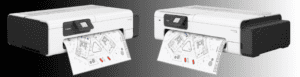
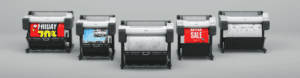
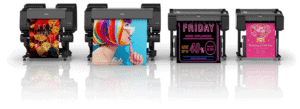
What is the best A1 printer?

Best A1 Printer (2025 Buyer’s Guide)


Choosing the best A1 printer depends on what you print — architectural drawings, posters, CAD plans or graphics — and how often you print. 

At Design Supply, we’ve supplied Canon, HP and Epson large format printers for over 30 years, helping businesses, schools and creatives find the perfect fit. Here’s our expert guide to the top mid-range A1 printers for 2025.

What Is an A1 Printer?


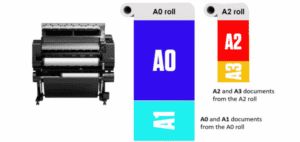
An A1 printer handles media up to 610mm (24 inches wide). Most models use roll media, allowing you to print A2 and A1 on the same machine. They’re ideal for architects, engineers, graphic designers and print professionals needing precise and vibrant large-format output.

What to Look For

 
  • Print quality: Look for at least 2400 × 1200 dpi and pigment inks for sharp, fade-resistant results.
  • Speed: Draft modes printing an A1 page in under 35 seconds are ideal for busy offices.
  • Colour accuracy: 5-colour or more ink systems deliver richer, more consistent tones.
  • Connectivity: Wi-Fi, Ethernet and AirPrint make printing easy from any device.
  • Low running costs: Consider ink yield and maintenance. We can help calculate total cost of ownership.
  • After-sales support: Every printer from Design Supply comes with our Total Commitment Guarantee and optional installation support.

Our Recommended A1 Printers


Canon imagePROGRAF TC-21

Compact and affordable, the Canon TC-21 delivers superb line accuracy and bold colour using 4-colour pigment inks. Ideal for students, home users or small offices needing professional A1 prints.

 👉 View Canon TC-21 A1 Printer

Canon imagePROGRAF TM-240 / TM-255

The latest Canon TM Series combines speed, quiet operation and pigment ink technology for water-resistant prints. Perfect for CAD drawings, posters and presentations in professional environments. 

👉 View Canon TM-240 👉 View Canon TM-255

HP DesignJet T230 / T650

The HP DesignJet T230 and T650 are sleek, reliable A1 printers ideal for CAD and technical drawings. Compact and fast, they fit neatly into any workspace and integrate smoothly with office workflows. 

👉 View HP DesignJet T250 👉 View HP DesignJet T650

Epson SureColor SC-T3100 / SC-T3405

Renowned for precision and reliability, Epson SureColor A1 printers produce excellent line accuracy and long-lasting pigment prints. Perfect for technical drawings, artwork, or education. 

👉 View Epson SC-T2100 👉 View Epson SC-T3405

A1 Printer Comparison Table

ModelMax WidthInk TypeTypical UseApprox. A1 SpeedKey Strength
Canon TC-2124″PigmentHome / Small Office~47 secondsCompact & affordable
Canon TM-240 / TM-25524″Pigment (5-colour)Office / Posters / CAD~35 secondsQuiet, water-resistant prints
HP DesignJet T250 / T65024″Dye / Pigment mixCAD / Technical~50 secondsCompact and fast
Epson SC-T2100 / T340524″PigmentTechnical / Graphics~50 secondsPrecision & reliability

Which A1 Printer Is Right for You?

 
  • For CAD and plans: HP DesignJet T250 / T650 or Canon TM-240 / TM-255
  • For posters and displays: Canon TM Series or Epson SC-T3405
  • For low-volume home or student use: Canon TC-21 or Epson SC-T2100

Expert Advice from Design Supply


Need help choosing the right A1 printer? Our team can compare models, ink costs and total ownership costs — plus arrange delivery, setup and training. We supply Canon, HP and Epson printers nationwide with full media and ink support. 

Contact us: ✉️ sales@dev.designsupply.co.uk 🌐 www.dev.designsupply.co.uk 

Design Supply Ltd – Large Format Printing Specialists since 1991.

We are moving!

Should I use compatible ink for my Canon Large Format Printer?

The Risks of Using Non-Genuine Canon Inks.


Design Supply has noted a significant increase in customers being forced to scrap their Canon printers due to damage caused by the use of ‘compatible’ or non-genuine inks. To be fair, I use them, but my A4 printer only cost £60. The investment you made in a large format printer is much more. It’s your choice. We can only advise.

Why Genuine Canon Ink is Essential

  • Canon ink is the only ink specifically designed and tested for optimal performance in your Canon printer.

  • Canon does not share its ink manufacturing process, design, or chemical makeup with third parties. Therefore, so-called “compatible” inks are merely imitations.

Health, Safety, and Technical Support

  • For health and safety reasons, Design Supply engineers are not permitted to service printers that have used non-genuine inks.

  • The chemical composition of these inks is unknown and potentially harmful, as they may contain untested, cheaper chemicals.

  • Non-genuine inks often lack proper Material Safety Data Sheets (MSDS) or may even have fraudulent documentation.

How Non-Genuine Inks Cause Damage

  1. Inferior Particle Quality: Canon grinds its ink pigments to an extremely fine consistency. To cut costs, compatible ink manufacturers use larger, coarser particles. Over time, these particles:

    • Clog the print head and cleaning system.

    • Build up as residue within the ink tubes, restricting flow and causing further blockages.

    • Note: Replacing a clogged print head is an expensive and only temporary solution, as the residual ink in the system will quickly clog the new head.

  2. Lack of Anti-Clogging Agents: Genuine Canon ink contains expensive anti-clogging chemicals that are essential for long-term printer health. These agents are often reduced or excluded from non-genuine inks to lower costs, leading to:

    • Print head nozzle blockages.

    • Purge unit (cleaning system) blockages.

    • Ink delivery blockages.

Conclusion
The damage inflicted by non-genuine inks is cumulative and irreversible. Once a printer has been used with compatible inks, the only remaining option is often to scrap the printer entirely. Using genuine Canon ink is the only way to protect your investment and ensure print quality and printer longevity.

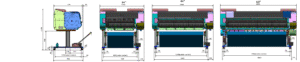
Canon Large Format Printer Dimensions

The spreadsheet link below not only gives you the Canon large format printer sizes, but also those of the stand units and the room required to open and position the catch-basket/stacker.

To download the sheet click here.


Canon TC-21 A1 Printer

The new Canon imagePROGRAF TC-21 A1 printer and the TC-21M, successors to the imagePROGRAF TC-20 and TC-20M compact desktop large format printers. The Canon boffins have been busy over the last few years, resulting in a desktop printer with superior usability and increased sustainability.

New – Tilting screen for easy operation and viewing of that valuable information, such as media type and ink levels.

New – Streamlined and simple paper loading process.

New – Vivid colour expression for poster printing on uncoated papers.

New – Minimal margin printing (now only 0.5mm).

New – Support of even smaller media, such as A6 paper, and envelopes.

New – Quieter operation.

New – Constructed using 40% recycled plastic.

New – Contains 5% recycled metal (another world’s first for large format printers).

Epson Large Format Cartridge Recycling Programme

Just follow the link here to recycle your large format printer cartridges from Epson.

Large Format Printer Ink Epson Recycle

Score Big: Win Your National Team’s Football Shirt with Your Order!

From the 10th of June to 5th July, place an order with Design Supply and you will be automatically entered into a prize draw. The lucky winner will receive their National teams football shirt for the upcoming Euros! Plus, we have fantastic runner-up prizes, 3 Adidas Euro 2024 Football’s.

Here’s how it works:

Place an order between 10th June and 5th July.

You’ll be entered into our exclusive prize draw.

Winners will be notified the 7th of July and receive their prizes before the final!

This is our way of celebrating the excitement of the Euros and thanking you for your continued support.

Here’s to a winning tournament!

Print Big, Plant Bigger with Us – For every large format printer you purchase

Growing a Greener Future: Planting Trees with Every Large Format Printer Purchase

At Design Supply we’re not just about delivering printing solutions; we’re committed to making a positive impact on the environment too. That’s why we’re excited to announce our new sustainability conquest with Ecologi, a platform dedicated to tackling climate change through tree planting and carbon offset projects.

Planting Trees, One Printer at a Time

For every Large Format Printer purchased through us, we pledge to plant 12 trees through Ecologi. This means that with each investment in your printing infrastructure, you’re also investing in a greener, healthier planet.

Why Trees Matter

Trees are nature’s superheroes, playing a crucial role in combatting climate change by absorbing carbon dioxide from the atmosphere. Additionally, they help regulate local temperatures, support biodiversity, prevent soil erosion, and provide habitats for countless species. By planting trees, we’re not just offsetting carbon emissions; we’re nurturing ecosystems and contributing to a more sustainable future for generations to come.

Sustainability in Partnership

We’re thrilled to collaborate with industry giants like HP, Epson, and Canon. These esteemed partners share our dedication to eco-friendly practices, ensuring that our printing solutions not only deliver exceptional quality but also minimise environmental impact.

Join Us in Making a Difference

By choosing Design Supply for your Large Format Printing needs, you’re not just investing in cutting-edge technology – you’re also joining us in our commitment to environmental change. Together, we can plant forests, restore ecosystems, and make a real impact on the world around us.

Let’s Grow Together

Ready to make a positive change? Together with Ecologi, we’re planting the seeds of change. Join us in nurturing a brighter tomorrow – one tree, one printer at a time.


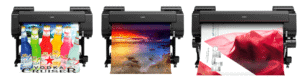
    Canon imagePROGRAF PRO & GP Models

    Canon imagePROGRAF PRO & GP MODELS

    DESIGNED FOR UNPARALLELED QUALITY WHEN PRINTING PHOTOGRAPHS/ARTWORK/HIGH QUALITY POSTERS

    Introducing the cutting-edge PRO and GP Series within the imagePROGRAF range. Unveiling the PRO-2600/4600/6600, and GP-2600S/4600S/6600S, our latest models produce gallery-quality prints and eye-catching posters.

    The new LUCIA-PRO II Ink System adds superior scratch resistance and light fastness of up to 200 years. The new PRO & GP models set a new standard in printing excellence.

    In alignment with your sustainability aspirations, these models proudly boast an enhanced EPEAT Gold rating. This is attributed to their minimal energy consumption and the innovative use of reduced polystyrene packaging, reflecting our commitment to eco-friendly practices.

    Canon Large Format Printer Ink Usage

    Every wondered how much ink is used to make a print?

    Check out this brochure to get the latest per ml ink needed for a range of typical prints on the Canon TM-240 A1 Large Format Printer and the Canon TM-350 A0 Large Format Printer

    This is the link to this handy PDF: Canon Ink Usage 2024


    Canon Large Format Printer Awards

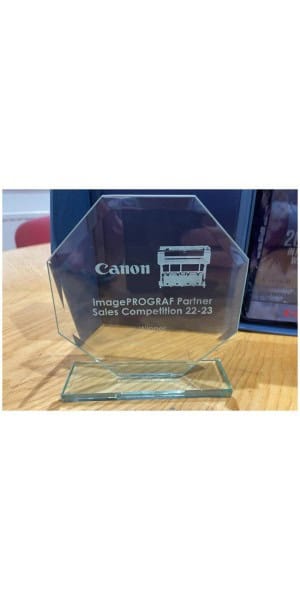
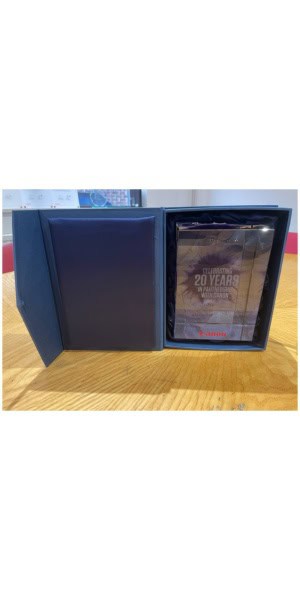
    TWO Canon awards for 20 years selling Large Format Printer solutions and service.

    Design Supply are very proud of our achievement.

    The Canon PRO-4100S Printer – How good is it?

    The Canon PRO-4100S Large Format Printer is the easiest to use professional grade large format photo printers with the perfect balance between productivity and superb print quality for Photo, Fine Art, Proofing and Design, Advertising, Retail  and professional Print for Pay applications.

    Some images printed on the Canon PRO4100S using DS S/A gloss and DS Adhesive Wall Fabric are below;

    [smartslider3 slider=”4″]


    Water resistant media from Design Supply

    This is a new product for us, we thought we should test it first! You can print a poster for maybe point of sale work and put it outside in the rain! So, it’s water resistant and saves costs and time on lamination. The poster we printed was put on the FRONT of the windscreen overnight and yes it rained!

    You can order online here: DS Matte Tear-Resistant Polyprop Banner 190mic – Design Supply

    DS Tear Proof Matte Banner 190mic Size Pack Qty Price
    A low cost, instant dry, matte tear-resistant water resistant banner made from tough polypropylene for indoor or short term outdoor applications. Commonly used as an economy roll up banner. 610mm x 30m 1 Roll £62.40
    914mm x 30m 1 Roll £95.85
    1067mm x 30m 1 Roll £111.91
    1118mm x 30m 1 Roll £117.24
    1270mm x 30m 1 Roll £132.48
    1524mm x 30m 1 Roll £158.88

    Canon Award for 20 years selling Large Format Printer solutions

    Canon award for 20 years selling Large Format Printer solutions and service.

    Design Supply are very proud of our achievement. This is a credit to my exceptional team who deliver time and time again.

    Thank you for being part of the journey!

    Canon’s brand-new fleet of imagePROGRAF TM series printers.

    The Canon TM-255 A1 Large Format Printer – Design Supply is our best seller due to the low cost of ownership and a hige 500 GB encrypted hard disk. If you are looking for an occassional use printer, say less than 5 a week try this budget option the Canon TM-240 A1 printer.

    Greater colour vibrancy

    • The ink enhancements for the imagePROGRAF TM series deliver greater vibrancy even on uncoated paper.

    Improved design

    • The new flat-top design makes it easier to switch paper rolls…it’s like a built-in desktop.
    • The touch-screen display can be tilted to adjust the angle for easy viewing according to the user’s point of view and position.
    • They are now even quieter, operating noise is approximately 1/3 lower than their predecessors, making it ideal for any workplace.

    Automatic media recognition and estimation

    • The new range can now automatically detect and display paper type.
    • They can estimate how much paper is remaining on the roll, so you won’t run out of media part-way into a print run.

    Impressive leap in sustainability

    • Canon have eliminated expanded polystyrene foam from the products’ packing materials. The new fully cardboard packaging is just one of the many environmental benefits that has helped the new TM series to secure the EPEAT Gold standard

    Canon’s brand-new fleet of imagePROGRAF TM series printers. Not just just a refresh, the new TM series and they have some great new elements.

    Canon Large Format Cartridge Recycling Programme

    Just follow the link here to recycle your large format printer cartridges from Canon.

    Canon Inkjet Cartridge Recycling Programme – Canon UK

    Canon Large Format list of paper profiles you can choose

    Canon Large Format list of paper profiles you can choose are all on the link below!

    Follow this link to download your paper profiles for the Canon Large Format printer range


    Guide to Large Format Media

    General Terms

    GSM

    GSM stands for grams per square metre. This is also known as “grammage”.

    A lower gsm – such as 80gsm – is cheaper and ideal for standard printing. However, a higher gsm like 90gsm will be stronger and longer lasting. If you want to print high quality flyers, posters, and art, you will need a higher gsm and a coated option.


    Rolls vs Sheets

    Sheets are less favoured these days. Aligning a sheet is time consuming and most large format printers have a built in cutter so rolls of paper are preferred. 

    Most organisations favour rolls. They are cheaper per square metre and are perfect for longer print runs. They require less attention as they don’t need to be changed as often, making your business more productive as a result.


    FSC certification


    FSC stands for Forest Stewardship Council. This mark lets you know that the trees have been harvested in a sustainable way. The FSC is not tied to a government, it’s a respected non-profit organisation.


    Types of Large Format Media


    Coatings


    Gloss – This paper is extremely shiny. This is eye-catching and makes your colours more intense and vibrant. However, it has the drawback of being incredibly reflective at certain angles. They need to be looked at under particular conditions in order to achieve their full effect.


    Satin – Satin is a medium being gloss and matt. It is less reflective, and therefore is better suited to being put behind glass. It retains much of the colour capabilities of gloss and are more flexible.


    Matt – Images on matt lack the intensity and resolution of a glossed paper. They are best suited to reports and presentations rather than artistic prints. They are extremely even and easy to write on.


    Self Adhesive – one side of this paper is sticky, and therefore can be placed on a surface. A matt coating will keep it weather resistant, whereas a gloss coating will be shorter term but give greater vibrancy.


    Film


    Polypropylene Film – This synthetic paper is great for both indoor and outdoor applications, offering a good water resistance and a vivid print finish. With a primer layer and a clear release film, this media is a great option for economical poster and POS prints.


    Clear film – This optically clear polyester film is ideal for monochrome or colour graphic arts applications using dye inks. The specialised coating ensures optimum ink acceptance and high registration accuracy.


    Colour separation film – This is used for creating screen positives. It has a special ink-receiving nano-porous layer for optimum ink acceptance, providing the perfect surface for printing screen positives that need to be sharp and high definition.


    Specialty Papers


    Acid Free – You may have seen old books which have “yellowed”. This is because the small acid content in the wood pulp has built up over time. This type of paper can last up to 1,000 years under the right conditions without tinting.


    Ultrasmooth – This is for fine art applications. It is acid free and coated to make your prints last.


    Backlit – This is used to make your colours as vibrant as they can be. The material allows light to travel through and create a soft glow, shining through your prints and making them pop.


    Microporous – This paper has tiny pores across the surface, allowing it to accommodate large amounts of ink easily. It dries instantly and is long lasting. This paper is perfect for archivists.


    Teslaflex – Developed by Papergraphics, the Teslaflex system is a unique, printable ferrous film that works with a self-adhesive magnet-receptive base. It can be quickly applied to magnetic surfaces, and quickly changed too.


    Canvas – this material is aimed at creating stunning art prints. If you want to create the perfect, lasting, fine art at the highest quality, this is what you’re after.


    Head on over to our media finder to get a great deal on large format media.

    Large Format Printer Parts – A Guide (Inside)

    The basic idea of inkjet printing is that a moving box (the carriage) contains a second box (the print heat) which squirts ink onto a piece of paper. While this is happening, the paper is pushed forward, and the two parts are synchronised to get the right colours in the right place. We’re going to show you how the inside of a large format printer works to get you amazing results.

    We’re going to make sure you understand all the large format printer parts in this two-part guide. We’re going to use the Canon TM-200 as a base, as it’s one of the most popular CAD printers out there. However, the information can be applied to many large format printers.

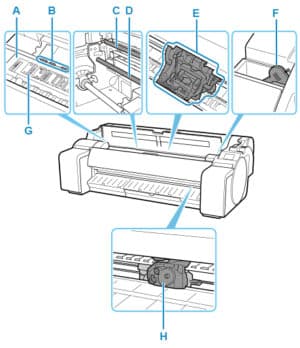
    Top Cover (Inside)

    Inside of the top cover

    (A) Platen
    This is the flat surface (think “plate”) that the paper rests on during printing. The print head then moves across this, spraying ink onto the paper.

    (B) Paper Retainer
    During inkjet printing, the paper is pushed through the machine. These retainers hold it in place to ensure that the ink is going to the correct spot on the page.

    If you don’t do regular cleaning maintenance on your large format printer, then you risk debris and ink getting onto these. When that happens, they won’t be able to keep the paper in place perfectly, which can cause printing errors.

    (C) Linear Scale
    This part is used to control the speed and position of the carriage. There are lots of little black lines which tell the carriage where it is, and the number of them it passes tells it the speed. Think of this as the “map” for the printer.

    Do not touch this during cleaning, because it can cause a serious malfunction if damaged.

    (D) Carriage Shaft
    The Carriage slides along this shaft.

    (E) Carriage
    Moves the print head. The carriage serves a key role in printing.

    (F) Cleaning Brush
    When cleaning inside the printer under the top cover, use this brush to sweep away paper dust on the platen. If you find spots on the underside of your prints, then use this to wipe down the platen.

    (G) Borderless Printing Ink Grooves
    This is a sort of drain for any overspill during borderless printing. It’s important to clean these out every month during routine maintenance.

    (H) Cutter Blade
    A round-bladed guillotine cutter for automatic paper cutting. This is vital for when printing from a roll, rather than pre-cut sheets.

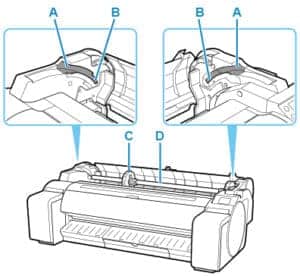
    Roll Paper Cover (Inside)

    inside of the roll paper cover

    (A) Slide Guide
    This is a hole in the side of your large format printer to make sure you get the roll holder into the correct position every time.

    (B) Roll Holder Slot
    Slide the roll holder into this slot using the slide guide.

    (C) Holder Stopper
    Secure the roll on the roll holder with these parts. They’re labelled L and R so you can always get them the right way round.

    There is a small lever on them to unclip them from the roll holder so you can take them off and put the fresh roll of paper in.

    (D) Roll Holder
    Load the roll on this holder. It’s also labelled with L for left and R for right, so you can always put it in the correct way.

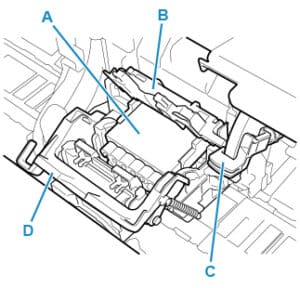
    Carriage

    The carriage is little more than a vessel to move the print head.

    large format printer carriage

    (A) Print Head
    The printhead is equipped with ink nozzles, which squirt the ink onto the page.

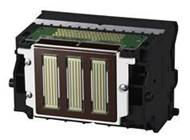
    If the print head isn’t used enough, then it can clog if little pieces of dust gets inside it, or ink residues dry up. Replacing a print head is a simple task, and involves opening up the carriage, taking out the print head, then simply slotting another one in its place. The touchscreen should be giving instructions at each stage of this process.

    Writing the date of install on your new print head is a good way to track your inventory and monitor how long each one is lasting.

    (B) Print Head Locking Cover
    Secures the print head.

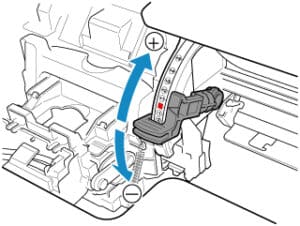
    (C) Angle Adjustment Lever
    If you have a problem with alignment when printing, then adjusting this can be an easy fix. There are a series of notches on the scale beneath the lever which can be used to fine tune the alignment.

    large format printer angle adjustment lever

    This process requires you to put the lever into the default position, print a test page, then line it up in the direction needed to correct any faults.

    (D) Print Head Lock Lever
    Lock print head locking cover. Flick this before opening up the carriage to replace the print head.

    Ink Tank Cover (Inside)

    inside of the ink tank cover

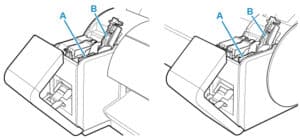
    (A) Ink Tank
    Cartridges of ink in various colours.

    (B) Ink Tank Lock Lever
    A lever that locks the ink tank in place and protects it. Lift and press down the lever when replacing an ink tank.

    Check out the other part of this guide where we look at the outside parts of a large format printer.

    Get in touch with us at Design Supply and we’ll help you find the perfect printer for your specific application, or repair your existing machine and get it back to perfect working order.

    How to change the cutter settings on the Canon TM-200 and TM-300 after printing

    The procedure for turning off the Canon TM-200 and Canon TM-300 automatic paper roller cutter and to produce cut guidelines is as follows:

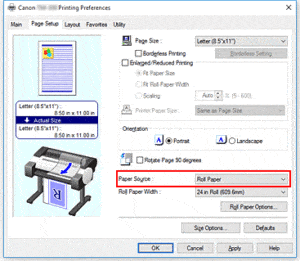
    1. Open the printer driver setup window
    2. Select the paper source

    In Paper Source, select Roll Paper.

    The paper feed method will differ according to the paper settings.

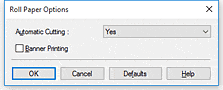
    1. Display Roll Paper Options dialog box

    Click Roll Paper Options to display the Roll Paper Options dialog box.

    1. Set auto cut

    From Automatic Cutting, select the item that matches your purpose.
    The current settings are displayed in the settings preview on the left side of the Page Setup tab.

    • Yes

    The roll paper is cut automatically after printing.

    • No

    The roll paper is not cut after printing.

    • Print Cut Guideline

    Cut guidelines are printed for cutting the roll paper manually after printing.

    • The default setting for automatic cutting is Yes.

    After completing the setting, click OK to return to the Page Setup tab.

    1. Complete the setup

    Click OK on the Page Setup tab.
    When you print, the roll paper is cut automatically after printing or cut guidelines are printed.


    Large Format Printer Parts – A Guide (Outside)

    We’re going to make sure you understand all the large format printer parts in this two-part guide. We’re going to use the Canon TM-200 as a base, as it’s one of the most popular CAD printers out there. However, the information can be applied to many large format printers.

    The Front
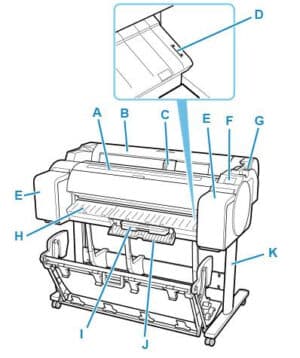
    (A) Top Cover

    Open this cover to install the print head and remove any jammed paper from inside the printer, as needed.

    This part is opened with a simple hinge, but you have to push the Release Lever first to lift it up.

    (B) Roll Paper Cover

    Open this cover to load rolls. Again, make sure you push the Release Lever first.

    (C) Width Guide

    When loading the sheets , move the guide to match the paper size.

    (D) Paper Alignment Line

    A white line for alignment of paper.

    (E) Ink Tank Cover

    Open this cover to replace the ink tank.

    (F) Operation Panel

    Use this screen to operate the printer and check the printer status. We’ll go into more detail about this later.

    (G) Release Lever

    When releasing the Paper Retainer, push this lever back. 

    (H) Output Guide

    Supports output paper into the basket.

    (I) Maintenance Cartridge

    This is a bit like the drip tray on a beer pump, or the crumb tray on a toaster. It collects the excess ink during printing, and from print head cleaning.

    Replace this when it’s full. With our Design Supply and Service, we’ll be alerted whenever it fills up and we’ll send a replacement out to you.

    (J) Maintenance Cartridge Cover

    Open this cover to replace the maintenance cartridge. It’s a little trap door that simply pulls open. No need to pull the release lever.

    (K) Stand

    This is equipped with casters to facilitate moving it. Keep in mind this comes shipped in a separate box during delivery, but we’ll fully install your machine for you.

    Desktop printers such as the Canon TC-20 won’t necessarily have a stand.


    The Stand
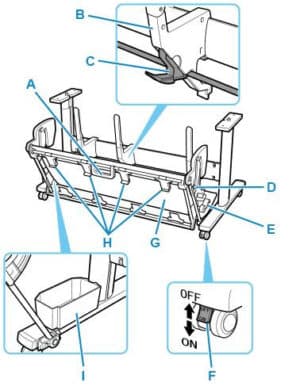
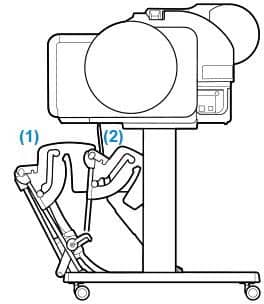
    The stand has two positions. It can be extended, in order to catch your large format prints, or reclined, for easy storage and movement.
    (A) Basket Handle

    This is simply a rigid handle, so that you have something to grip as you move the basket from extended to reclined position.

    (B) Paper Guide

    Guides the output printed documents to the basket.

    (C) Adjustable Stopper

    Extends according to the paper size. When printing A1, pull this out once you’ve extended the basket using the support rod.

    (D) Support Rod

    Use this to change the position of the basket from reclined to extended. 

    (E) Basket Release Lever

    Releases the basket when it is set in the extended position B and the lever is pulled forward. 

    (F) Locking Caster

    The casters can be locked securely. When moving the printer, be sure to unlock the 4 casters. If you move it while the locking casters are locked, the floor may become scratched.

    (G) Basket

    Catches your large format prints. For best results, only store one in the basket at a time, removing each document once it’s been printed. However, it can store up to 20 in its extended position.

    It can hold documents from up to 48 inches (1219.2 mm) long.

    Don’t wash the basket, simply wipe it down with a cloth.

    (H) Basket Ejection Guides

    This guide helps the paper into the basket, ensuring it stays on track.

    (I) Accessory Pocket

    Stores the printer’s accessories. This can include cleaning materials, such as swabs and cloths.


    The Back
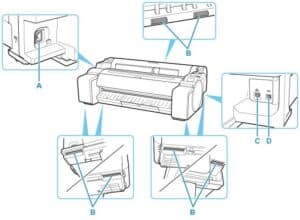
    (A) Power Cord Connector

    Connect the power cord to this connector.

    (B) Carrying Grips

    When moving the printer, have three or more people holding it by these handles under both sides. This will avoid anyone placing their hands on any delicate or dangerous parts.

    Hold the left and right of these parts when moving the printer with a stand, which are shown at the bottom of the diagram. This will give you the best grip and ease of movement.

    (C) Wired LAN Connector

    Connect an Ethernet cable to this port. The lamp is lit if the Ethernet cable is connected correctly and communication is possible between the computer and printer.

    (D) USB Port

    Connect a USB cable to this port. The printer is compatible with Hi-Speed USB connections. A usual USB plug won’t fit in here though, use a type-B connection, which is the standard for printers.


    The Operations Panel
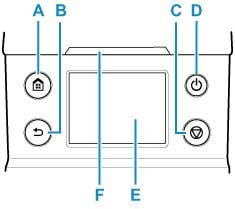
    On most modern Large Format Printers, this will be a touch screen. 

    A: HOME button

    The HOME screen appears.

    B: Back button

    Displays the screen before the current screen.

    C: Stop button

    Cancels print jobs in progress and ends the ink drying period. This refers to the fan which blows on the prints as they come out.

    D: ON button/ON lamp

    Turns the printer on and off.

    The ON lamp is lit when the printer is on or in Sleep mode.

    E: Touch Screen

    Shows printer menus, as well as the printer status and messages. You can select menu items and display buttons by gently touching the screen with your fingertip.

    F: Status lamp

    The below codes will differ based on your model. However, expect most large format printers to tell you similar information. On a home printer, the lamp will likely have more modes, as it will not always have a screen to refer you to. A professional large format printer will be able to give you a written error report on the screen.

    If an error code is displayed, write it down in order to inform your technician.

    Flashing (white)

    During printing, this lamp flashes when the printer is receiving or processing print jobs. Otherwise, this lamp flashes when the print job is paused or the printer is updating the firmware.

    Lit (orange)

    A warning message is displayed.

    Flashing (orange)

    An error message is displayed.

    Off

    There are no active print jobs, warnings, or errors.


    The Touchscreen
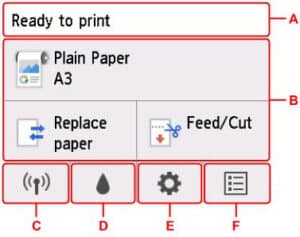
    A: Printer Information Display Area

    Displays the printer status, messages, and other information. Tap this item when a message appears to view the message on the list screen and to jump to the screen with detailed information and operations.

    B: Paper Setting Display Area

    Displays the information on loaded paper on the upper area. Tapping this option displays the menu relating paper and allows the paper settings. Replace paper and Feed/Cut frequently used in the menu appears on the lower area, and you can directly select.

    C: Network

    Displays the current network status. Select to display the basic network information or to change the network settings.

    D: Ink information

    Select when checking current estimated ink levels or replacing ink tanks.

    Once you press this, a tutorial will play out guiding you through the various stages of the process.

    E: Setup

    Select when changing the printer settings, performing maintenance, or checking printer information.

    Some of the options in here shouldn’t be touched, except by a technician. These may or may not be labelled as such. Debugging is an operation which should be left to a technician. Refer to your manual to make sure which can be altered by a standard user.

    F: Job management

    Select when checking or deleting print jobs. A more advanced version of this is available on the Canon software that comes free with your large format printer. This particular option is useful for a quick check at your machine so you don’t have to return to your computer, rather than a comprehensive overview.

    Get in touch with us if you want to learn more about large format printers!

    Large Format Paper Tips from Printing Experts

    After buying your new printer, it’s important to make sure you get the right paper for it, and take good care of it! Here are Design Supply’s Large Format Paper tips!

    Storage

    The biggest mistake we see is people storing their paper horizontally. Doing this can cause the roll to bend in on itself, as the weight of the top pushes on the bottom. Storing them upright keeps them in perfect condition.

    If you want the best results from your paper, handle it like you would a CD or a vinyl record. Hold it by the ends and don’t touch the centre! Any mark or scratch could make your poster unsalable.

    The best condition for your paper is between 20 and 24ºC, or 68-75 Fahrenheit, and a humidity of between 45 and 55%. Any more than this can damage your paper.

    Why is this?

    Paper has a tendency to absorb moisture, which is why it’s used for things like kitchen towels. So the environment affects the weight, thickness and rigidity of the paper.

    If it’s too hot, the moisture in the paper can evaporate, causing multiple sheets to feed in at the same time.

    If it’s too humid, the paper could distort.

    If it’s too dry, you might end up with streaks and smudges when printing.

    Using the best large format paper for the task

    Heavier papers are more durable, and therefore last longer. They can also be set with more ink, giving you greater clarity and vibrancy. However, they are more expensive.

    Use our Design Supply paper finder here to get the best paper for your application.

    One of our favourite large format paper tips is how to avoid having a border when printing A1 documents.

    When printing A1 prints on an A1 printer using a roll, usually, the printer will rotate your image so that it fits onto the standard 610mm paper, but this comes with white margins at the sides.

    However, using a 594mm paper roll will give you the perfect dimensions you need, and avoid having to use a guillotine on your prints and posters.

    Avoiding Curling

    An issue for many brands of printer is that sometimes the paper being used can be tightly wound. Toward the end of a roll the paper may have a lot of curl or ‘memory’, causing it to be raised slightly when it moves under the printhead. This can cause head strikes, where the print head scuffs the top of the paper whilst printing, creating unwanted marks on the print and making it unsalable.

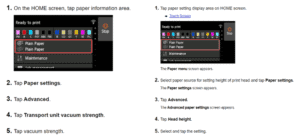
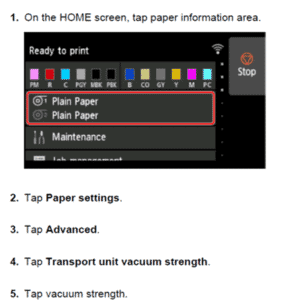
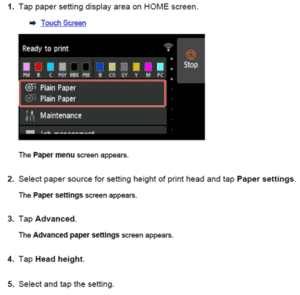
    Canon imagePROGRAF printers automatically adjust the head height based on the paper type selected and use suction to keep the paper as flat as possible while printing, However, if you have a particularly challenging roll of media, you can manually change the head height and/or vacuum strength via the control panel. This is an incredibly quick and simple process that can easily be carried out by even a novice operator, so there’s no waiting for an expensive technician or time and materials wasted.

    Want to know more about what’s best for your business? Get in touch with Design Supply today!

    SALES TEAM 020 7842 1555
    EMAIL sales@dev.designsupply.co.uk

    Making Large Format Printers Environmentally Friendly

    We all want to make sure that we’re making our offices and homes more environmentally friendly. HP have been putting lots of measures in place to reduce the impact of their large format printers and ink cartridges on the environment.

    Recycled Parts

    Disposable plastic cartridges have been a major problem, with around a million of them thrown out per day in 2017.  Focusing on this problem has been a serious concern of the industry over the past decades. HP have developed an “eco-carton” cartridge in response to this. This design uses 100% recycled and recyclable cardboard containers, which can be recycled anywhere. Meanwhile, the inner bag is designed with up to 35% recycled plastic, which can be recycled for free with us.

    In order to make sure that less are thrown out, cartridge size has also been increasing. HP have increased the capacity from 775ml to 1 litre, so that the components last longer and therefore need changing less often.

    The large format printers themselves are now being designed more and more with recycled plastic. HP are designing printers with up to 37% recycled plastic in the parts, with up to 90% of the machine being recyclable when it comes to the end of its lifespan.

    Meanwhile, the DesignJet Studio is net carbon-neutral, with each part of the lifecycle monitored from material extraction, transportation, usage, and end of service.

    Certifications

    Epeat is the leading ecolabel for technology products. A product rated by it is designed to reduce environmental impact not just when it runs, but throughout its entire life cycle, from design to recycling.

    The organisation specifies 23 required criteria, and 28 additional optional criteria. They’re designed to show that a product is less toxic, longer lasting, easy to recycle, and more energy efficient.

    Some of these industry-wide respected criteria are a lack of toxic substances, making sure that materials are recycled and recyclable, lifespan of the product, energy efficiency, and packaging design.

    The HP Designjet T200 series is Gold rated, giving you peace of mind about its environmental credentials.

    Tips

    One great tip to manage paper waste is, before embarking on a long print run, to print one page first, in order to check your source file and your large format printer are both working properly.

    Programs are now being included as part of the purchase of your large format printer in order to get the best out of them. These applications are simple to install and can be updated easily, in order to keep them compatible with the latest software in a fast-changing environment.

    HP Click is designed to make printing fast, simple, and with a focus on reducing waste. With tools like auto-orientation, error checking, and an enhanced print preview, you’re much less likely to create waste and come up against errors that disrupt your workflow.


    Attitudes are changing, and McKinsey research shows that sustainability is “highly important” for about 40 percent of European consumers. The large format printing industry has its part to play in meeting that need, with a greater focus on recycling and recyclability being put in across the systems lifecycle.

    Get in touch with us at Design Supply to talk about how we can help your business achieve the lowest carbon footprint possible.

    Types of Large Format Storage

    Now that you’ve bought your large format printer, your ink, and your paper, you’ll need somewhere to store all your creations. Plan chests are large format chests of drawers, made from either wood or metal, designed to store A0 or A1 documents.

    Your art, designs, and plans are stored flat in wide horizontal drawers, and slide on runners.

    If you’re part of a small volume business, a small plan chest with 6 drawers could suit your needs, while a big plan chest would have 12.

    Material Comparison

    In basic terms, wooden plan chests are lighter and cheaper.

    Metal is stronger but significantly heavier. An A0 6 drawer will be around 200kg if made of metal, while wooden would be around 120kg.

    At the largest end, an A0 10 drawer metal is 235kg, while an A0 12 drawer wooden is around 214kg. Neither option is particularly lightweight, and they can come fully assembled and installed for you, but if weight or bulk could be issues for your organisation, then wooden is the way to go. Most plan chests come with lockable casters, however, making them easy to move if needed.

    Our wooden plan chests have drawers which can be removed completely, whereas metal ones are fixed in place. Make sure you get the large format storage setup which suits your needs.

    It could be that in a school, making sure pupils can’t take out a drawer by accident and spill equipment everywhere would lead you towards a metal unit, which would also stand more punishment. However, an office could lean towards a wooden plan chest that’s more in keeping with the room’s aesthetic, and removing the drawers could lead to greater accessibility.

    Security Options

    Any plan chest should come with the option for locks. When searching for a chest, decide whether you need keys in groups mastered to a single key, or with a unique key for each drawer.

    Depending on the access levels of each employee and the nature of the documents, you might decide that no lock is necessary at all.

    Specialty Types of Large Format Storage

    Fearon

    The Fearon Plan Chest has label slots as standard. It’s also lockable as standard, but with one key for the whole plan chest. This should be enough for many organisations.

    It’s metal and comes with an option for raised legs of a custom height, which can fit it around other worktops, or to create storage space underneath.

    Chamberlain

    This wooden plan chest comes with steel legs as standard to elevate it off the ground. It has fewer drawers, but you can keep items below the raised portion.

    How Schools Can Use A Large Format Printer

    Delivering the best teaching experience at the right price is a priority for schools these days. By utilising large format printing, you can deliver fun, engaging lessons and boost the morale and engagement of your students.

    Bringing a large format printer in-house is a cost-effective way of taking control of your lessons, decorating your environment, and giving you complete flexibility.

    Visual Learning

    A 2015 study found “creating creative posters for a lesson, discussion, or example as part of this lesson helps students develop their critical thinking skills”. Stock posters have been used in schools for years to deliver information in a fun and engaging way, and to brighten up the classroom environment.

    However, if you want to truly increase the interest and retention of your students, then making custom visual aids is the best way to go. This will deliver the best pupil experience, cost savings and streamlined workflow over time, with the control given over to the teacher.

    Some ideas include:

    • Gold star charts tailored with each pupil’s name.
    • Large maps for geography and history lessons, with relevant areas marked out.
    • Design process graphics for tech classes specific to a project.
    • Calendars in staff areas to plan lessons and timetabling.

    These can all be made into templates, which can then be adapted term after term, therefore streamlining your workflow in future.

    Promoting school events

    Creating an amazing community spirit in your school is so important to inspire your students to do their best. When your school wins a sporting competition, puts on a brilliant play, or creates a brilliant project, you can commemorate the moment with a long-term display that will motivate your pupils for years to come.

    By creating lively and exciting banners you can also promote upcoming events, with large format displays certain to grab the attention of your entire student body! Graphics printers allow you to create amazing quality, vibrant images to really show off what your school is capable of.

    Cost Effectiveness

    It’s never been easier to take control of your school’s environment. While in the past it may have been necessary to go to external companies and services to receive top quality printing, that’s no longer the case.

    With the use of existing templates and easy to use programs, it’s a simple process to make stunning designs. You can customise your materials to make them specific to your school with just a few clicks. Canon PosterArtist (https://www.canon.co.uk/business/products/software/posterartist/) comes free with your large format printer, giving you the power and flexibility you need.

    Rather than spending your budget outsourcing your operation to a printing company, you can dramatically increase your turnaround speed. No waiting and budgeting if something changes about an event, you can simply make the changes yourself and create a new batch.

    Security

    There’s no need to worry about your large format printer being misused. Modern machines come equipped with a range of security measures to make sure that only the right documents and right people are using them.

    This includes a pin lock to make sure that only authorised people can use it. You can also see a full print history to check every document coming out of your large format printer. These measures make sure your investment is safe.

    Design Supply and Service

    Cut down on admin by using our Design Supply and Service, which is a cost-effective way of getting your paper and ink when you need it. It also tracks errors and maintenance, so you have peace of mind that everything’s taken care of.

    Call Design Supply today to discuss your needs.

    Design Supply is a Canon Gold Partner 2025

    Thank you to all of our customers and everyone at Canon for making us a Gold Partner for 2025. We’ve been gold accredited since 2018, and is a mark of our experience and expertise.

    What Does This Mean For My Business?

    Gold status demonstrates our ability to provide you with the perfect solutions for your business, guidance on every step of the way, and an in-depth knowledge of products and services.

    We’ve been given Canon Gold Accreditation for both CAD and graphics large format printers, so whether you’re in construction, engineering, public services, or photography or advertising, you can put your trust in us to give you the support you need.

    Get in touch with us today, and we’ll help you find the solution you need!

    How To Get Your Ink and Repairs Easily

    The Design Supply and Service for Canon imagePROGRAF large format printers is the cost-effective service based on your ink use, and frees you up to focus on the efficient running of your business.

    With automatic ink replenishment, in-depth monitoring and the highest levels of support and maintenance, the Design Supply and Service is based on billing you for the millilitres of ink you use each month.

    The printers are linked to a secure system, allowing the service state and usage to be remotely monitored. Whether you have one printer or an entire fleet across multiple sites, the system will alert us when your inks and maintenance cartridges are low so they can be automatically replenished.

    The system also constantly monitors for errors and warnings and general service state, to allow fast diagnosis of problems and the scheduling of routine maintenance. Every fifteen minutes, we’ll receive information about the state of your devices. If there’s an error, a notification is sent to our support team. If you need any consumables, we’ll dispatch them with a next day service.

    For construction companies, you’ll see a reduction in costs, due to predictable ink costs per millimetre used. In retail, you’ll see increased productivity because of the automatic maintenance and replenishment. For healthcare and other public services, you’ll benefit from the small amount of downtime and the proactive service and support.

    In order to keep your peace of mind, you can use our secure portal to view key information regarding your large format printer. There, you’ll find the latest errors, warnings, ink levels, and top media.

    In Short, Benefits include:

    You pay only for the ink you’ve used.

    Predictable costs, smooth cashflow

    Automatic ink and maintenance cartridge replacement, no waiting, no paperwork, no downtime

    Diagnosis and preventative maintenance

    Contact us on 020 7842 1555 or sales@dev.designsupply.co.uk to discuss your needs further. We pride ourselves on always finding the right plan to fit your needs.

    Four Fixes For Bad Printing Results

    Canon imagePROGRAF printers are awesome, they’re easy to use and produce amazing prints. However, as with all large format printers, you may sometimes find that what they see on their screen, isn’t what comes out of the printer. Here some common reasons and fixes.

    1: Check the paper profile

    It’s very important to make sure you’ve chosen the correct ICC profile before printing. This profile contains the information that the printer needs to accurately place and reproduce the correct colours on different types of paper. Different medias also require different amounts of ink to reproduce accurate colours. The imagePROGRAF machines have Canon profiles built in, those for alternative brands of media can be supplied by the manufacturer and easily installed.

    2: Calibrate the PC screen

    It’s important to calibrate the PC monitor so that colours and tones are displayed correctly on the screen. This would normally be a job for a specialist, but you may choose to purchase equipment to do this yourself.

    Once the screen is calibrated and the correct ICC is loaded and chosen, it’s still a good idea to Soft Proof the image to ensure the fix is successful and to get the best results every time.

    Soft Proofing gives you the ability to see a simulation of how the image will look when printed based on your chosen media profile. Ensuring that the colours and tones will look the same on the paper as they do on the screen helps avoid wasted time and materials. Soft Proofing won’t cost a penny, as you can use Canon’s free Print Studio Pro or Professional Print & Layout software to achieve this.

    3. The print head nozzles are blocked

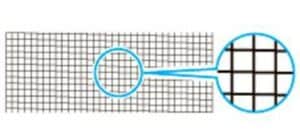
    Your large format printer will have a maintenance menu, from which you can print a nozzle test page. When looking at it closely, it should resemble the top image, with consistent lines, rather than a botched grid. If the grid isn’t properly printed, you’ll need to clean the heads. Start with the lightest cleaning setting to see if that works, then move up through the intensities to avoid wasting ink.

    Good nozzle test resultBad nozzle test result

    You can use our easy tool to find more ink here.

    4. Spring clean the inside of your printer

    Cleaning inside the top cover of your printer about once a month will prevent problems. If the underside of paper is dirty or you’ve recently used adhesive paper, then it’s a good idea to do some maintenance.

    Do not use a dry cloth as it may create a static charge, but make sure to completely wring out a damp cloth. Do not use any rough materials that could scratch the surface.

    Your device may come with a cleaning brush that’s best for when working with the internal components, and there could also be a Platen Cleaning mode to select in the maintenance screen that needs to be triggered first.

    Sometimes preventative measures will avoid problems that need to be fixed later down the line.

    Innovations in Large Format Printer Technology

    In order to ensure your printer gives you what you need, first time, every time, the Canon imagePROGRAF range design team have certainly covered every angle.

    Inkjet printers have been the industry standard since the end of the 2010s, due to their environmental footprint and cost-effectiveness.

    The first inkjet printers were invented after it was found that applying heat to ink would cause droplets to fire out of a syringe. Cartridges were then created that would use electric current to generate a bubble, which would shoot a droplet out of the nozzle and onto the page. But things have come a long way since then!

    How The imagePROGRAF Range Gets Perfect Results

    The media roll is fixed into position on the spindle via the locking end caps, to ensure that the paper cannot move from side-to-side or spin independently as it’s fed through the paper path.

    The printer will then automatically make sure that the media isn’t skewed or crooked as it feeds, keeping it absolutely flat thanks to the strong, but silent, vacuum that will suck the media to the printing platform.

    The printhead ejects ink at roughly 30 million drops per second, and even at this incredible speed, every single drop is accounted for. If one drop fails to eject, the printer will immediately use a different nozzle to compensate for it so that every detail of your hard work is present on the paper.

    Stability matters, you want every drop of ink to be placed where it should be. Under the shell, many models have a steel unibody construction that prevents the printer from oscillating or rocking as the printhead zips back and forth over the media.

    The Canon imagePROGRAF TM-305 large format printer features the LUCIA TD 5-colour all pigment ink system which produces the sharpest, thinnest lines. It’s specifically designed for CAD, GIS, and Poster applications, a minimum line width of 0.02mm can be achieved with a range accuracy of +/- 0.01%. Considering a human hair is around 0.08mm, you can be certain that your prints are perfect.

    All of this and more ensures that you receive pinpoint accuracy of the ink placement, resulting in the very best quality output possible.

    Design Supply & Service Agreement for Large Format Printers

    Canon eService for imagePROGRAF printers, the cost-effective service based on the customer ink use, frees customers up to
    focus on the efficient running of your business.

    With automatic ink replenishment, in-depth monitoring and the highest levels of support and maintenance, imagePROGRAF
    eService is based on billing you for for the millilitres of ink you use each month.

    The printers are linked to a secure eService system, allowing the service state and usage to be remotely monitored. Whether
    you have one printer or an entire fleet across multiple sites, the system will alert you when their inks and maintenance
    cartridges are low so they can be automatically replenished.

    The system also constantly monitors for errors and warnings and general service state, to allow fast diagnosis of problems
    and the scheduling of routine maintenance.

    Customer benefits include:
    Pay only for the ink you have used
    Predictable costs, smooth cashflow
    Automatic ink and maintenance cartridge replacement, no waiting, no paperwork, no downtime
    Diagnosis and preventative maintenance

    Find our more here https://www.dev.designsupply.co.uk/design-supply-service/

    FSC Certified Large Format Paper

    The Forest Stewardship Council (FSC) and the Program for the Endorsement of Forest Certification (PEFC) were established
    to promote the responsible management of the world’s forests. FSC certified paper provides an assurance that the wood
    and paper have been harvested in an environmental and socially responsible manner, and can often contain recycled
    paper. The FSC certification provides a way in which the material can be tracked from the source to the paper
    manufacturer, and on to the end user. PEFC ensure that the forests are managed in a sustainable manner, protecting their
    ecosystem, and ensuring they are there for generations to come.

    We are proud to say that a vast amount of PEFC and FSC certified Design Supply paper can be found via our handy online https://www.dev.designsupply.co.uk/popular-media-and-paper-for-large-format-printers/ there are even filters to get you directly to those products.

    Low Energy Costs With Our Large Format Printers

    As energy prices continue to rise, we’re all checking our consumption. Thankfully, the operating power of a Canon TM-200 printer is actually incredibly low, so large format printer owners can rest at ease when it comes to running costs.

    For example, the operating power of the Canon TM-300 is just 69W or less. That’s only slightly more than the typical operating power consumption of a laptop computer, and around 10% of a typical domestic waffle iron. When in sleep/standby mode, (which is where printers tend to spend most of their time) the printer will consume only 3.6W, to ensure that its systems are up-to-date, primed, and ready to spring into action.

    One thing to keep in mind that when the printer is set to OFF, it will still draw a small amount of power, around 0.3W. To completely shut it off, unplug it from the wall.

    Let’s compare this to a model from 2003, the Canon W8200. This model consumed up to 160W during standard operation, and up to 30W while on standby mode. Keeping energy costs down has been a priority for the large format printer industry, to keep your bills low and to protect the environment.

    Managing Your Device Effectively

    One tip is to go into your devices settings and use the energy saving modes effectively. A sleep timer will specify the length of time until your device enteres sleep mode, if no operation is made. To go further, Auto Power Off will set the time until your device switches off once it’s gone into sleep mode.

    Take these lower and lower until you find what’s right for your office. However, your unit will use some power to switch itself on and put itself into different modes, so if you bring them too low, you can end up using more energy by mistake.

    The whole Canon imagePROGRAF range are incredibly energy efficient printers and are all Energy Star rated.

    Print your own vibrantly coloured or personalised wrapping paper

    Customers are busy gearing up for the Christmas period, and whatever your line of business you will almost certainly want to make displays, posters and advertising items as noticeable as possible. And what better way than to create them all, quickly and easily, in-house with a Canon imagePROGRAF GP series printer and our free Canon PosterArtist software? Perhaps you would like to offer vibrantly coloured or personalised wrapping paper? The good news is that you can do that too!

    The GP range are the world’s first Pantone licenced aqueous inkjet printers for Pastels & Neons. The GP-200 and GP-300 use 6 colours to deliver premium-quality prints that make a lasting impact with a newly developed fluorescent pink ink. The GP-2000 and 4000 use 11 colours to produce superior, wider gamut prints.

    But what if you don’t want prints with neon colours or pastel shades? Not a problem. You can print in regular colours too…the choice is yours!

    How Long Will a Large Format Print Last?

    The new Canon GP series are the ideal machines for producing beautiful, eye-catching images on posters, backlit film, wrapping paper…you name it! The new ink set, including the Fluorescent Pink (FP), are all pigment based and therefore formulated to be highly water and UV resistant…however the FP ink is slightly less durable than the other colours, so just how long will the FP ink still give your print that wow factor?

    The short answer is “much longer than you’re likely to need it!”

    If you are in advertising, entertainment, hospitality, POS, education, etc. all of whom don’t see extreme longevity as a priority this should be music to your ears when we say that the neon colours will actually stay as vibrant as the day they were printed for up to 3 years or more in the right conditions. Far longer than it’s likely to be on show!

    Even in a window display, in full sunshine, you can expect 6 months before any fades occur and reprinting may be necessary, but it’s more likely that you would have changed your offers, project or product focus long before that happens.

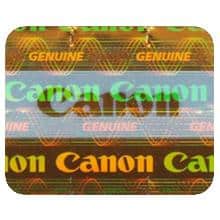
    Make sure that you use genuine ink to get the best results. If you buy from Design Supply, you’ll see the hologram on the cartridge that tells you that it’s the real deal.

    Printing on high quality paper will also give a layer of protection that will allow your prints to hold their quality for longer.

    So if you need, low cost, high impact prints that can last for years, check out the new GP series. Don’t need neon? Simply turn off the FP ink or opt for any of the other models in the Canon imagePROGRAF range for prints that will last even longer.

    If you need more information on the GP, TA, TM, TX or PRO series machines, please contact one our specialists here at Design Supply.

    Batch Print on your Large Format Printer

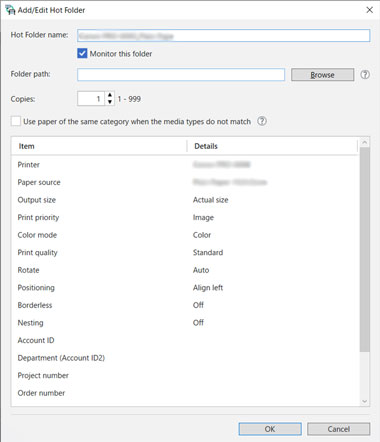
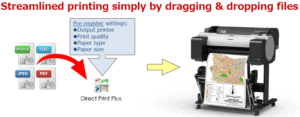
    Canon Direct Print Plus is an awesome, time saving tool that allows you to quickly and easily batch print on your large format printer PDFs, HP/GL2 CAD files, TIFF and Jpg.

    A “Shortcut Print” option enables you to set up basic ‘hot folders’ on your desktop to speed up your workflow by simply dropping your work into it. Once you move a file into the hot folder, Direct Print Plus will start to print them. Rather than hit print on every individual file, you can simply drag and drop!

    Multiple folders can be created, each one with different output settings to make life even easier. What settings can you have?

    You can set your hot folder to specific output sizes, print priority, color mode, print quality, rotation, positioning, borders and nesting.

    This means that if you want one batch printing job for rough drafts of a lot of project, but another for posters you want distributing, that’s something you can set up and edit as you go.

    Another great feature of Direct Print Plus is that you can save your printing history for an amount of time that suits you. Security concerns may mean you only want a small amount of history, but if you’re after added convienence, you can select jobs to print from that history.

    And there’s no need to pay for a costly Postscript option either!


    Direct Print Plus is FREE, just contact Design Supply for your copy.

    Preparing Your Large Format Printer for a break

    Preparing your printer for a break is an often overlooked part of maintenance. If you don’t take the right steps, your inks could dry up and the parts could misalign.

    Should I set my printer in standby mode or should I turn it off during holidays?

    Ink circulation systems, print heads and heating / cooling systems are all intended to work practically “non-stop”. When printers are left idle or turned off for a long time, they may suffer damage.

    Under normal circumstances solvent and UV printers will work fine if it has not been used for up to a week but it is frequently recommended to set the printer in sleep / standby mode and there are a few steps to follow. A correct shutdown will be more certain to lead to a successful restart and avoid wasteful costs.

    1/ Clean your Large Format Printer

    Clean and maintain your printer at regular intervals, take the time to clean, tidy and prepare your printer.

    2/ Check Major Failure Points

    Print heads and ink circulation systems: The main culprit of breakdowns is stagnant ink. Print heads and cap tops can foul, potentially causing head nozzles to clog or deflect, or ink accumulating in the head can get messy droplets of ink on your print material.

    Filters and fans: Most printers have fans and filters to keep them cool, especially UV printers on the lamp housings. Keep them clean and replace them if even remotely suspect. If you are in a dusty environment, check the filters often and replace, even more often than you think they may need.

    Rails and Carriage: Wipe the printer’s carriage rail with a soft cloth and follow the manufacturer’s recommendations to know which lubricant to use. A lot of carriage motion or Y-current errors disappear when the carriage is cleaned and oiled.

    Inspect wiper for wear: Replace cleaning wipers when they are worn out or soaked in ink.

    3/ Inspect the Ink System

    Unless you’ve been advised to flush your printer, ensure your ink cartridges have enough ink to use to run through your shut down period. As long as there is enough ink in the printer it will clean itself and circulate the ink to keep it happy and healthy, it is also important to check the waste ink drainage and empty where required so it does not over flow.

    In addition, you must ensure that the ink already installed has a shelf life that will exceed the duration of the shutdown. If not, consider replacing it before shutting down. This is because inks have been carefully developed to remain stable for a certain period, but not beyond. Remember that manufacturer and ink suppliers may not accept liability for inks that have passed this date and have caused damage.

    If your large format printer uses white and metallic inks don’t forget to shake the cartridges at least once a week otherwise ink may settle out and coagulate.

    4/ Enable Automatic Cleaning

    Some devices may need manually printing a few meters of output every week to keep things flowing but – fortunately – most have automatic cleaning systems that work unattended. You could be advised to simply unplug and shut down. Switch your printer off in standby mode and let the system look after itself.

    5/ Print Room

    Extremes of temperature, dust and humidity can damage your equipment and consumables.

    Too much humidity and your inks may not dry properly, and substrate may absorb humidity and cockle, causing printing issues and head strikes. Too little humidity and you may have static issues, which may lead to overspray or other printing problems, including data inaccuracies that will cause your printer to produce bad prints.

    Generally, if you have to shut down for less than a week and you performed regular cleaning and maintenance, there is not much to worry about. But if for any reason your printer has to rest for a longer period and you cannot print at least a meter of output a week, we advise you follow the above to prepare your printer for the break.

    Calibrate your Large Format Printer

    Brrrrr…It’s starting to get chilly!

    Time for a reminder that now is a good time to colour calibrate your large format printer, as all printers can be affected by changes in their environment. Changes such as seasonal temperature and humidity may cause the colour representation to change slightly.

    We know how important it is for colour-critical customers to obtain the same fantastic results time after time, so there’s a very easy-to-use and clever colour calibration feature built into the Canon imagePROGRAF Pro-Series graphics machines to compensate for those changes.

    Executing colour calibration from the printer control panel will print a test pattern, this is then automatically read by the printer sensor to instantly set the correct colour values.

    It really couldn’t be easier. On the PRO Series for example, simply tap Maintenance on the LCD screen, then tap Colour Calibration and then Auto Adjust. Click Yes to confirm and watch it do its magic!

    In just a few minutes, you can be sure that every print is as great looking as the first.

    Built in HDD on Canon Large Format Printers

    Getting a large format printer with a hard disk drive allows you to speed up your company’s workflow. In terms of accessing, reprinting, and sharing files, a HDD gets your system moving quickly!

    Most home printers won’t require a HDD. When printing single jobs in A4, the processing required is enough for a small home device and home network. However, when the size of the files and the amount of jobs increase, the amount of memory required also naturally increases.

    Therefore, storing some files on a hard disk drive means you don’t have to keep sending them over the network, and allows for faster processing. One of the reasons that large format printers are much faster is the amount of memory on the machines, which means less large network traffic.

    Some printers come with a solid state drive, or SSD, which is a faster method of storing data on your large format printer.

    What Benefits Do You Get From a HDD?

    On the Canon imagePROGRAF printers you can save print jobs to the built-in hard disk (if equipped). Save time having to use a computer, just print from the operation screen on the printer.

    When you send a job to the printer you can either save it on the HDD to be printed later, or save it after it’s been printed, just in case you may want more copies. If printing it later, the desired quantity of prints can be set without returning to the PC. Simple reprinting, if an error occurs.

    For example, if you run out of paper in the middle of printing, you can resume printing after loading a new roll. Once again, all via the touch-screen on the printer, no need to return to the PC to resend the job.

    Keeping Your Data Secure

    Don’t forget, PIN protected mailboxes can also be set up on the HDD if they wish to keep your work a little more secure!

    Furthermore, it’s important to remove the HDD when your large format printer has reached the end of its life. The Canon TM305 has an option for fast and secure deletion for your peace of mind, however, keeping hold of your old hard disks would create an extra layer of protection for highly sensitive data.

    With most printers, even home printers, there will be a small amount of job history even with a HDD. The Canon TM300, which has no HDD, has a print history of around 10 jobs, which increases to 500 in the TM305. This is good for you! It means you can find old jobs much more easily. However, it means that secure data won’t “flush through” quickly.

    Time is money, and making sure that your large format printer is working quickly is important! Look into whether your operation can benefit from a machine with a HDD.

    Canon A1 GP-200 – Super Bright Printing

    If you are looking for a new A1 printer to produce bright, eye-catching posters, photos and banners? Not sure if the Canon GP-200 or the HP Z6 is the printer for you?

    Here are just a few things to consider.

    1: Did you know that the HP Z6 cannot be used on a desktop? It has to be stand mounted, taking up valuable space.

    2: Did you know that the GP-200 is 24% slimmer than the Z6? Making the GP-200 ideal for desktops or small office spaces.

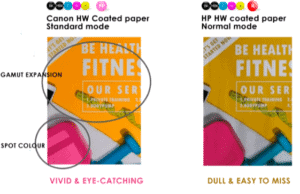
    3: Did you know that the newly developed Fluorescent Pink ink expands the colour gamut to create a whole range of eye-popping colours…not just pink! And with the ability to use Spot Colour on your creations you can highlight detail, draw focus to the message, and give every print that extra-positive “WOW” factor when it’s needed.

    Neon isn’t the only option either, pastels are also a part of your available palette.

    Canon imagePROGRAF GP series – Excitement in colour

    New, Bright and exciting – Vivid prints on our new Large Format Printers

    page1image9528880
    [vimeography id=”4″]

    Design Supply New models include:

    Canon imagePROGRAF GP-4000 (44 inch) and GP-2000 (24 inch) that use 10 colours including red, orange, green and violet ink plus fluorescent pink ink.

    Canon imagePROGRAF GP-300 (36 inch) and GP-200 (24 inch) that use 5 colours plus fluorescent pink ink.

    Key benefits of the new devices:

    Providing High-Value-Added Printing

    Wide colour gamut graphic reproduction

    PANTONE Colour Compliance

    High precision colour stability

    Efficient and convenient paper handling

    Smart Roll Paper Set up

    Multifunction roll system

    Easily create borderless prints in a variety of sizes

    Contact us and find out more.


      Vivid Prints with our Large Format Printer range

      Need posters and signs with gorgeous, eye-popping colours that shout “Look at me!”? Or perhaps you’re printing fine art or pop-art that only long-lasting, vivid colour can do justice? Or maybe vibrantly coloured wrapping paper is your thing? If so, this could be right up your street!

      The new Canon imagePROGRAF GP-200, GP-300, GP-2000 and GP-4000 printers, a range that use a mixture of regular colour inks and the Worlds first aqueous pigment fluorescent inks to produce images that you simply cannot ignore.

      The GP-200 and GP-300 use 6 colours to deliver premium-quality posters that make a lasting impact with a newly developed fluorescent pink ink, capable of producing neon and pastel shades. The GP-2000 and 4000 use 11 colours to produce superior, wide gamut prints and feature five new colours – red, orange, green and violet – plus the new fluorescent pink.

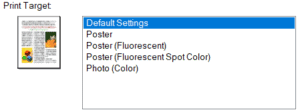
      Create posters in Canon’s free PosterArtist Lite software and you can fill areas and even spot-colour parts of your design to achieve neon highlights where it counts.

      Got a print-job that doesn’t require fluorescent colour? They’re ideal for that too…The choice is yours!

      Remaining Media Estimation function on a Canon imagePROGRAF printer

      The Remaining Media Estimation function on a Canon imagePROGRAF printer is a fantastic tool, it uses the media thickness and roll rotation to estimate how much media is left on the roll. If you don’t have enough on the roll to complete the print-run, it’ll tell you.

      But we haven’t abandoned the older and highly accurate Barcode system of media management. Using this function, the remaining media amount is managed by printing a small barcode on the leading edge of the media when removing a roll. When you reload that media, the printer reads it, sets everything up accordingly and trims off the barcode. In addition, it also prints the information in plain text, very helpful when taking a part roll from the rack, you’ll know exactly what it is and how much is left before loading it.

      So, whether you require an estimate or barcode for your remaining media, you can apply the management method that suits you and your printing environment.

      Printing onto thicker medias using a Canon imagePROGRAF PRO series printer

      When printing onto thicker medias using a Canon imagePROGRAF PRO series printer, some customers may experience thin lines on their image as the roll gets used up. This is generally due to the fact that the paper that’s closer to the central core has much more curl. This tight curl leads to resistance the pull of the platen vacuum that would normally keep the media absolutely flat, and therefore the printhead may start to brush the surface of the paper.

      Thankfully this is rare, but if this does occur the good news is that your customer can remedy this incredibly easily by increasing the vacuum strength to pull the media flat again using the following simple steps.

      In addition, the following process allows your customer to increase the head height to create more distance between the media and the print head.


      Saving paper with a Canon Large Format Printer

      Saving paper with a Canon Large Format Printer

      A question from one of our customers! We get loads of these and it is all part of our commitment when you buy from us. How to save paper when printing with a large format printer?

      “One of the draughtsmen seem to have it sussed you need to save & open drawings in the Adobe Acrobat format & you can print & resize a lot easier.

      We are sent drawings from customers in PDF for A1 & A0 prints, but its extremely hard to get it to print just A1, as using A0 paper will create large amounts of waste.”

      Our advice:

      As he said it must be opened in Adobe PDF and not a PDF in a web browser.

      The driver cannot communicate otherwise.

      In terms of saving paper:

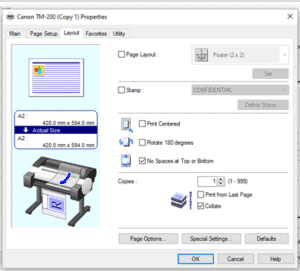
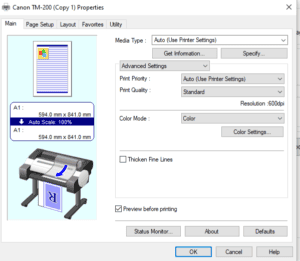
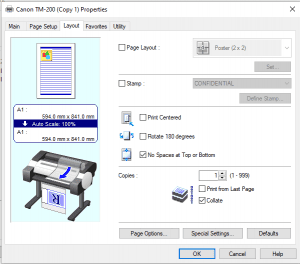
      After they have selected A1 and landscape (printing from an 841mm roll)

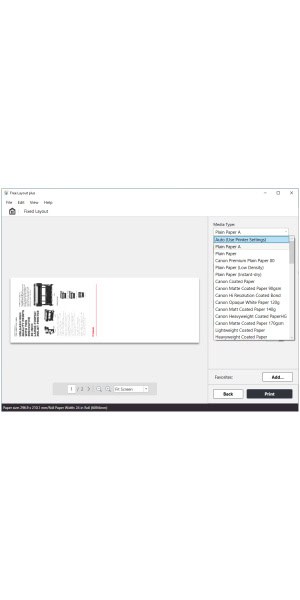
      Tick the box as below that says no spaces if it is printing a white space.

      When printing a large number of documents, perhaps as a poster campaign or to send copies to multiple clients, print one as a test first to ensure that your equipment is functioning perfectly. There’s nothing worse than getting to the end of a long print run and finding out there’s been a fault with your large format printer.

      During extended breaks, such as the holiday period, it’s common to accidentally waste rolls by storing them incorrectly. Make sure that you store them in a place which is cool and dry, and too much heat could cause crinkles and curls, which can lead to paper jams.

      A cabinet which is conveniently placed close to the printer is a good investment, as it will stop moisture and dirt getting onto your rolls.

      Dust reduction for your large format printer

      Dust reduction is an often overlooked part of large format printer maintenance. Keeping your machine as clean as possible will ensure that prints remain perfect every time.

      The automatic cutting of certain medias, such as canvas, can result in dust and debris collecting inside any large format printer and lead to premature printhead failure.

      One remedy was to manually cut the canvas and backlit film prints off the roll with scissors or a blade instead of using the machine’s inbuilt rotary cutter blade, another is to allow the printer to moisten the paper cutting area with ink to prevent dust being created, but ink is valuable stuff!

      This was because large format printers used to house the cutter in the print head. This would cut down on the complexity of the machines.

      A little known fact about the Canon imagePROGRAF PRO series of printers is that, rather than wasting ink, they have a separate carriage assembly for the cutter, this keeps cutting dust away from the print head while placing the actual cut closer to the paper exit point. No manual intervention, no wasted ink.

      This design also benefits the drop placement accuracy of the head and no ink needs to be used to wet the cutting area, resulting in increased reliability, lower ink use and higher print quality.

      Modern rotary cutters are significantly more effective than the various methods of yesteryear, and therefore can be relied upon to cut a range of materials with a minimum of wear and tear.

      Too much dust in a machine can cause a variety of problems, including poor colour accuracy and blurry prints.

      It’s important to use an anti-static brush or compressed air to regularly remove dirt. Many machines come with a cleaning device and a space to store it between uses.

      Keep an eye on exposed areas such as fans, or any other areas which are open to the elements. Keep these clean in order to have the best air flow through the large format printer, or you can run into power problems.

      Get in touch with us at Design Supply for more advice and to find the perfect printer for your specific application.

      Relocating your large format printer

      Once installed, relocating your large format printer has traditionally been a labour intensive and high waste exercise if the printer needs to be heavily tilted. This involved draining valuable ink from the printer’s system into the maintenance cartridge, thereby making it unusable and expensive! This would typically be the case when moving machines between sites, taking them up and down staircases and tilting them to a high degree to get around tight corners or into lifts.

      Thankfully this practice is fast becoming a thing of the past thanks to the unique sub-tank and modular chassis system introduced into the Canon imagePROGRAF Pro-Series and TX series of Canon large format printers, potentially saving you hundreds, if not thousands of pounds over the life of your large format printer if a site relocation or two are required.

      Design Supply’s trained technicians are able to help you by following a unique procedure that drains the full ink-lines back into the sub-tanks for later use, the sub-tanks can then be removed from the machine for transport. Once the printer has been placed in situ at it’s new location, the sub-tank assembly can be reconnected and the ink lines re-primed, ready to print…no mess, no hassle, no waste.

      Canon TM-200 and printing A3

      Customers often assume that in order to print A3 posters, that they need to manually feed single A3 cut sheets. If you have a lot of A3’s to print, this would a long and tiresome job, not to mention expensive. However, just as half A0 is A1, half A2 is A3…so you can actually print A3 from an A2 roll!

      Canon TM-200 and A3

      Printing A3 from an A2 roll is cheaper, faster and far more convenient than loading cut sheets.

      Check out our A2 roll here.

      Canon TM-200 and Canon TM-300 Layout tool

      Couple of tips for you, if you’re doing a print for the first time on a Canon TM-200 A1 printer or the Canon TM-300

      Tick the box as below “preview before printing”

      Will show exactly how your print is going to look on the roll.

      Further down you can see on the tab “layout”

      There’s box “no spaces at top or bottom”

      Hitting this should stop extra paper being wasted when printing across the roll for a smaller size.

      Canon TM-200 and TM-300 profile settings for our free media packs

      DS Matt polypropylene 205mic / 130gsm. Size 610mm X 4.5m  3″ core ( with core adaptor)

      Canon TM- 200 or Canon TM-300 profile setting:

      205mic  / 130sgsm Polyprop = if there is a dedicated Polypropylene setting then use that otherwise either Photo Satin, PVC banner  or Heavy weight coated

      DS PE-coated Professional Universal Photo Satin 190gsm   50mm core. Size: 610mm x 4.5m  on 2” core

      Canon TM- 200 or Canon TM-300 profile setting:

      190gsm PhotoSatin = Photo Satin setting

      DS Matt professional-grade high white coated paper 120gsm    610mm x 4.5m on 2″ core

      Canon TM- 200 or Canon TM-300 profile setting:

      120gsm Coated = Matt coated setting

      Canvas printing on the Canon TM-200 and TM-300

      Here are some tips on canvas printing on the Canon TM-200 and TM-300

      This is an economical solution, so it takes some fiddling, but other clients of ours and our tests have delivered good results. The 12-colour option adds another £2K plus to costs hence why we find this solution fits clients looking for a good result with a smaller investment but it does need some playing around to achieve this.

      Also – it is a good idea to not use the cutter that is on the printer but do a manual cut with a scalpel or something. Canvas is a tough material, and it will blunt the blade.

      You can increase the carriage height, but we would not recommend, if the head is raised too high it creates ink mist and also affects print quality. We only suggest raising the head if it’s coming into contact with the media. Therefore, a Canvas weight about 300gsm requires more adjustments and not recommended but can be done.

      It can be raised through the paper menu once the relevant paper type is selected.

      There is no canvas option in the printer media list on the Canon TM-200  or GP-200/300 but you can use the media configuration tool to rename/add. We suggest you use the HW coated paper setting as that gets us good results.


        First Name (required)

        Last Name (required)

        Your Email (required)

        Phone Number

        Subject

        Your Message


          Just press SEND ENQUIRY once when you have completed the form, you will then be returned back to the product page and we will get back to you shortly.